# Multi-Robot-Graph-SLAM
**Repository Path**: wwnxiao/Multi-Robot-Graph-SLAM
## Basic Information
- **Project Name**: Multi-Robot-Graph-SLAM
- **Description**: No description available
- **Primary Language**: Unknown
- **License**: BSD-2-Clause
- **Default Branch**: continuous_integration
- **Homepage**: None
- **GVP Project**: No
## Statistics
- **Stars**: 0
- **Forks**: 0
- **Created**: 2024-11-28
- **Last Updated**: 2024-11-28
## Categories & Tags
**Categories**: Uncategorized
**Tags**: None
## README
# Multi-Robot Graph SLAM using LIDAR
This repository contains a ROS2 multi-robot 3D LIDAR SLAM implementation based on the [hdl_graph_slam](https://github.com/koide3/hdl_graph_slam) package. The package is tested on ROS2 humble and it is under active development.
Check out a video of the system in action on youtube:
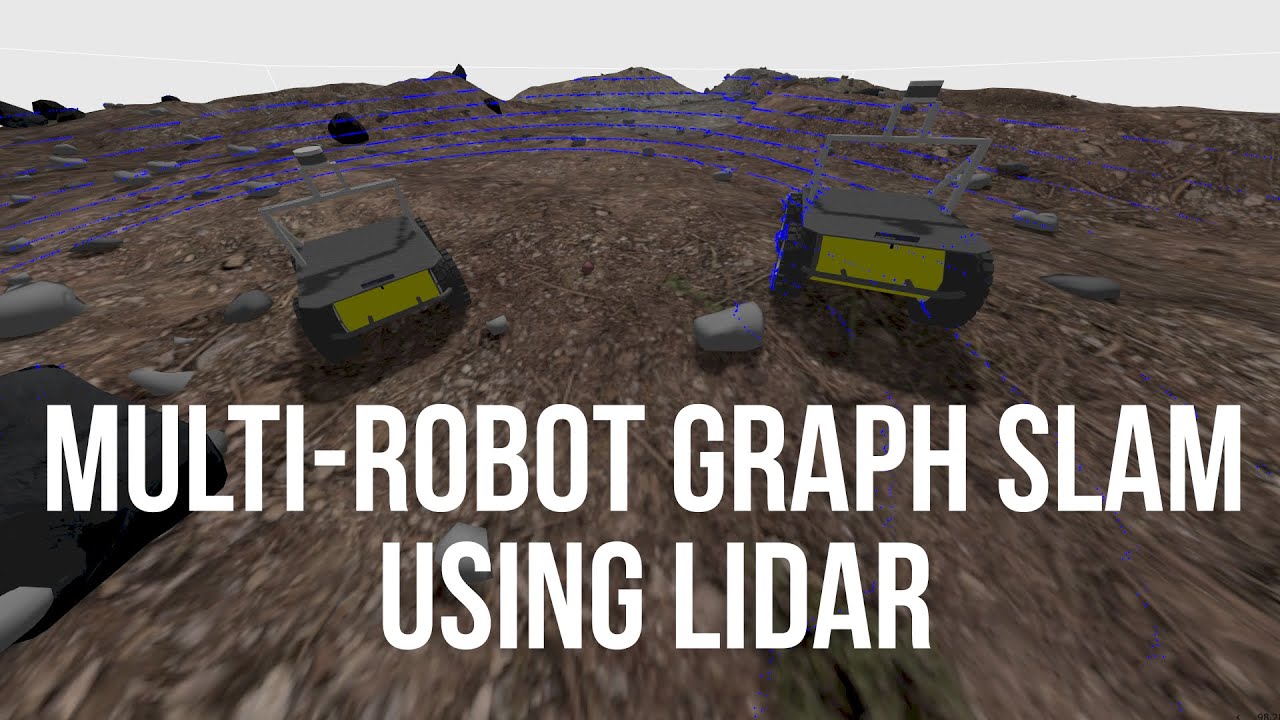 The repositories that will be cloned with the vcs tool are:
- [mrg_slam](https://github.com/aserbremen/mrg_slam) - Multi-Robot Graph SLAM using LIDAR based on hdl_graph_slam
- [mrg_slam_msgs](https://github.com/aserbremen/mrg_slam_msgs) - ROS2 message interfaces for mrg_slam
- [mrg_slam_sim](https://github.com/aserbremen/mrg_slam_sim) - Gazebo simulation for mrg_slam for testing purposes
- [fast_gicp](https://github.com/SMRT-AIST/fast_gicp) - Fast GICP library for scan matching
- [ndt_omp](https://github.com/koide3/ndt_omp) - Normal Distributions Transform (NDT) library for scan matching
The system is described in detail in the [paper](https://ieeexplore.ieee.org/document/10553070) titled "Multi-Robot Graph SLAM using LIDAR". The procesing pipeline follows the following diagram:
The repositories that will be cloned with the vcs tool are:
- [mrg_slam](https://github.com/aserbremen/mrg_slam) - Multi-Robot Graph SLAM using LIDAR based on hdl_graph_slam
- [mrg_slam_msgs](https://github.com/aserbremen/mrg_slam_msgs) - ROS2 message interfaces for mrg_slam
- [mrg_slam_sim](https://github.com/aserbremen/mrg_slam_sim) - Gazebo simulation for mrg_slam for testing purposes
- [fast_gicp](https://github.com/SMRT-AIST/fast_gicp) - Fast GICP library for scan matching
- [ndt_omp](https://github.com/koide3/ndt_omp) - Normal Distributions Transform (NDT) library for scan matching
The system is described in detail in the [paper](https://ieeexplore.ieee.org/document/10553070) titled "Multi-Robot Graph SLAM using LIDAR". The procesing pipeline follows the following diagram:
 Feel free to open an issue if you have any questions or suggestions.
## Dependencies
- OpenMP
- PCL
- g2o
- suitesparse
The following ROS packages are required:
- geodesy
- nmea_msgs
- pcl_ros
## Installation
We use the vcs tool to clone the repositories. If you have ROS2 installed, you should be able to `sudo apt install python3-vcstool`. If not check out the [vcstool installation guide](https://github.com/dirk-thomas/vcstool?tab=readme-ov-file#how-to-install-vcstool). Then run the following commands:
```
git clone https://github.com/aserbremen/Multi-Robot-Graph-SLAM
cd Multi-Robot-Graph-SLAM
mkdir src
vcs import src < mrg_slam.repos
colcon build --symlink-install
source install/setup.bash
```
On memory limited systems, you need to export the MAKEFLAGS `export MAKEFLAGS="-j 2"` to limit the maximum number of threads used for a specific package using `make`. Then, use `colcon build --symlink-install --parallel-workers 2 --executor sequential`.
## Docker Installation
The docker user has the id 1000 (default linux user). If you experience issues seeing the topics from the docker container, you might need to change the user id in the Dockerfile to your user id.
```
cd docker/humble
docker build -t mrg_slam .
```
You should be able to communicate with the docker container from the host machine, see Usage section below.
## Usage
For more detailed information on the SLAM componenents check out the README.md of the [mrg_slam](https://github.com/aserbremen/mrg_slam) package.
The SLAM can be launched using the default config file [config/mrg_slam.yaml](https://github.com/aserbremen/mrg_slam/blob/main/config/mrg_slam.yaml) of the `mrg_slam` package with the following command:
```
ros2 launch mrg_slam mrg_slam.launch.py
```
### Usage with a namespace / robot name
Launch the SLAM node with the command below. The parameter `model_namespace` is going to be used to namespace all the topics and services of the robot. Additionally the initial pose in the map frame `x`, `y`, `z`, `roll`, `pitch`, `yaw` (radians) can be supplied via the command line. Check out the launch file [mrg_slam.launch.py](https://github.com/aserbremen/mrg_slam/blob/main/launch/mrg_slam.launch.py) and the config file [mrg_slam.yaml](https://github.com/aserbremen/mrg_slam/blob/main/config/mrg_slam.yaml) for more parameters. The main point cloud topic necessary is `model_namespace/velodyne_points`. Per Default the model namespace is `atlas` and `use_sim_time` is set to `true`:
```
ros2 launch mrg_slam mrg_slam.launch.py model_namespace:=atlas x:=0.0 y:=0.0 z:=0.0 roll:=0.0 pitch:=0.0 yaw:=0.0
```
### Usage without a namespace / robot name
Many packages use hard-coded frames such as `odom` or `base_link` without a namespace. If you want to run the SLAM node without a namespace, you need to set the `model_namespace` to an empty string in the [mrg_slam.yaml](https://github.com/aserbremen/mrg_slam/blob/main/config/mrg_slam.yaml) file. Note that you can't pass an empty string as the `model_namespace` via the command line, so you must to set it directly in the configuration. Then, you can launch the SLAM node with the following command:
```
ros2 launch mrg_slam mrg_slam.launch.py x:=0.0 y:=0.0 z:=0.0 roll:=0.0 pitch:=0.0 yaw:=0.0
```
During visualization for naming the keyframes, the robot name will be displayed as `""` if no namespace is set.
### Usage with online point cloud data
I have tested the SLAM with online point cloud data from a Velodyne VLP16 LIDAR. The velodyne driver will be launched together with the SLAM node by passing the `config` parameter to the launch script. The configuration file `mrg_slam_velodyne_VLP16.yaml` is located in the `config` folder of the package.
```
ros2 launch mrg_slam mrg_slam.launch.py config:=mrg_slam_velodyne_VLP16.yaml
```
You can also supply your own configuration file. The launch script will look for the configuration file in the share directory of the package. If you add a new configuration to the `config` folder, you need to rebuild the package.
## Usage Docker
If you want to run the SLAM node inside a docker container, make sure that the docker container can communicate with the host machine. For example, environment variables like ROS_LOCALHOST_ONLY or ROS_DOMAIN_ID should not set or should be correctly set. Then run the following command:
```
docker run -it --rm --network=host --ipc=host --pid=host -e MODEL_NAMESPACE=atlas -e X=0.0 -e Y=0.0 -e Z=0.0 -e ROLL=0.0 -e PITCH=0.0 -e YAW=0.0 -e USE_SIM_TIME=true --name atlas_slam mrg_slam
```
## Playback ROS2 demo bag
I have supplied a demo bag file for testing purposes which can be downloaded from [here](https://drive.google.com/drive/folders/1sJw0ma0IINBS9GIBQdGMfNJGs2d4TF9U?usp=sharing). The bag file contains the data of two robots `atlas` and `bestla` moving in the simulated marsyard environment, demonstrated in the video above. Note that the bags are not exactly the same as in the video, but they are similar❕ The topics are as follows:
- `/atlas/velodyne_points`
- `/atlas/cmd_vel`
- `/atlas/imu/data` # not used in the SLAM node but given for reference
- `/atlas/odom_ground_truth`
- `/bestla/velodyne_points`
- `/bestla/cmd_vel`
- `/bestla/imu/data` # not used in the SLAM node but given for reference
- `/bestla/odom_ground_truth`
- `/clock`
Note that you need two instances of the SLAM algorithm for `atlas` and `bestla`. The initial poses need to be given roughly. You should end up with a similar looking result as demonstrated in the youtube video.
```
ros2 launch mrg_slam mrg_slam.launch.py model_namespace:=atlas x:=-15 y:=13.5 z:=1.2 # terminal 1 for atlas
ros2 launch mrg_slam mrg_slam.launch.py model_namespace:=bestla x:=-15 y:=-13.0 z:=1.2 # terminal 2 for bestla
```
To play the bag file, run the following command:
```
ros2 bag play rosbag2_marsyard_dual_robot_demo
```
## Simulation
Alternatively to playing back the ROS2 bag, you can simulate a gazebo environment and test the multi-robot SLAM manually. Check out the repository [mrg_slam_sim](https://github.com/aserbremen/mrg_sim) for testing out the multi-robot SLAM implementation in a simulated environment using Gazebo (tested on Fortress). Note that this approach might need a bit more computational resources than the playback of the rosbag.
## Visualization
Visualize the SLAM result with the following command. The rviz configuration is configured for the robot names `atlas` and `bestla`:
```
rviz2 -d path/to/mrg_slam/rviz/mrg_slam.rviz --ros-args -p use_sime_time:=true # use_sim_time when working with robags or gazebo
```
## Saving the Graph
Save the graph of the robot `atlas` to a directory for inspection with the following command:
```
ros2 service call /atlas/mrg_slam/save_graph mrg_slam_msgs/srv/SaveGraph "{directory: /path/to/save}"
```
The directory will contain a `keyframes` folder with detailed information about the keyframes and a `.pcd` per keyframe. The `edges` folder contains `.txt` files with the edge information. Additionally, the `g2o` folder contains the g2o graph files.
## Loading the Graph
The graph can be loaded from the directory which was previously saved with the `save_graph` service call. The graph is loaded into the SLAM node and the unique IDs of the keyframes are used to only add unknown keyframes to the graph.
For the robot name `atlas`:
```
ros2 service call /atlas/mrg_slam/load_graph mrg_slam_msgs/srv/LoadGraph "{directory: /path/to/load}"
```
Note that loaded keyframes when visualized have a certain string added to the name to distinguish them from the keyframes that were added during the SLAM process. Right now `(loaded)` is added to the name of the keyframe.
## Saving the Map
Save the map of the robot `atlas` to a `.pcd` file. If no resolution is given, the full resolution map is saved. Otherwise a voxel grid map with the given resolution is saved. Note that in comparison to the `save_graph` service call, the full `file_path` needs to be given.
```
ros2 service call /atlas/mrg_slam/save_map mrg_slam_msgs/srv/SaveMap "{file_path: /path/to/save/map.pcd, resolution: 0.1}"
```
Inspect the map with the pcl_viewer `pcl_viewer /path/to/save/map.pcd`.
## Citation
If you use this package in your research, please cite the following [paper](https://ieeexplore.ieee.org/document/10553070):
```
@INPROCEEDINGS{Serov2024ICARA,
title={Multi-Robot Graph SLAM Using LIDAR},
author={Serov, Andreas and Clemens, Joachim and Schill, Kerstin},
booktitle={2024 10th International Conference on Automation, Robotics and Applications (ICARA)},
year={2024},
Address = {Athens, Greece},
}
```
Feel free to open an issue if you have any questions or suggestions.
## Dependencies
- OpenMP
- PCL
- g2o
- suitesparse
The following ROS packages are required:
- geodesy
- nmea_msgs
- pcl_ros
## Installation
We use the vcs tool to clone the repositories. If you have ROS2 installed, you should be able to `sudo apt install python3-vcstool`. If not check out the [vcstool installation guide](https://github.com/dirk-thomas/vcstool?tab=readme-ov-file#how-to-install-vcstool). Then run the following commands:
```
git clone https://github.com/aserbremen/Multi-Robot-Graph-SLAM
cd Multi-Robot-Graph-SLAM
mkdir src
vcs import src < mrg_slam.repos
colcon build --symlink-install
source install/setup.bash
```
On memory limited systems, you need to export the MAKEFLAGS `export MAKEFLAGS="-j 2"` to limit the maximum number of threads used for a specific package using `make`. Then, use `colcon build --symlink-install --parallel-workers 2 --executor sequential`.
## Docker Installation
The docker user has the id 1000 (default linux user). If you experience issues seeing the topics from the docker container, you might need to change the user id in the Dockerfile to your user id.
```
cd docker/humble
docker build -t mrg_slam .
```
You should be able to communicate with the docker container from the host machine, see Usage section below.
## Usage
For more detailed information on the SLAM componenents check out the README.md of the [mrg_slam](https://github.com/aserbremen/mrg_slam) package.
The SLAM can be launched using the default config file [config/mrg_slam.yaml](https://github.com/aserbremen/mrg_slam/blob/main/config/mrg_slam.yaml) of the `mrg_slam` package with the following command:
```
ros2 launch mrg_slam mrg_slam.launch.py
```
### Usage with a namespace / robot name
Launch the SLAM node with the command below. The parameter `model_namespace` is going to be used to namespace all the topics and services of the robot. Additionally the initial pose in the map frame `x`, `y`, `z`, `roll`, `pitch`, `yaw` (radians) can be supplied via the command line. Check out the launch file [mrg_slam.launch.py](https://github.com/aserbremen/mrg_slam/blob/main/launch/mrg_slam.launch.py) and the config file [mrg_slam.yaml](https://github.com/aserbremen/mrg_slam/blob/main/config/mrg_slam.yaml) for more parameters. The main point cloud topic necessary is `model_namespace/velodyne_points`. Per Default the model namespace is `atlas` and `use_sim_time` is set to `true`:
```
ros2 launch mrg_slam mrg_slam.launch.py model_namespace:=atlas x:=0.0 y:=0.0 z:=0.0 roll:=0.0 pitch:=0.0 yaw:=0.0
```
### Usage without a namespace / robot name
Many packages use hard-coded frames such as `odom` or `base_link` without a namespace. If you want to run the SLAM node without a namespace, you need to set the `model_namespace` to an empty string in the [mrg_slam.yaml](https://github.com/aserbremen/mrg_slam/blob/main/config/mrg_slam.yaml) file. Note that you can't pass an empty string as the `model_namespace` via the command line, so you must to set it directly in the configuration. Then, you can launch the SLAM node with the following command:
```
ros2 launch mrg_slam mrg_slam.launch.py x:=0.0 y:=0.0 z:=0.0 roll:=0.0 pitch:=0.0 yaw:=0.0
```
During visualization for naming the keyframes, the robot name will be displayed as `""` if no namespace is set.
### Usage with online point cloud data
I have tested the SLAM with online point cloud data from a Velodyne VLP16 LIDAR. The velodyne driver will be launched together with the SLAM node by passing the `config` parameter to the launch script. The configuration file `mrg_slam_velodyne_VLP16.yaml` is located in the `config` folder of the package.
```
ros2 launch mrg_slam mrg_slam.launch.py config:=mrg_slam_velodyne_VLP16.yaml
```
You can also supply your own configuration file. The launch script will look for the configuration file in the share directory of the package. If you add a new configuration to the `config` folder, you need to rebuild the package.
## Usage Docker
If you want to run the SLAM node inside a docker container, make sure that the docker container can communicate with the host machine. For example, environment variables like ROS_LOCALHOST_ONLY or ROS_DOMAIN_ID should not set or should be correctly set. Then run the following command:
```
docker run -it --rm --network=host --ipc=host --pid=host -e MODEL_NAMESPACE=atlas -e X=0.0 -e Y=0.0 -e Z=0.0 -e ROLL=0.0 -e PITCH=0.0 -e YAW=0.0 -e USE_SIM_TIME=true --name atlas_slam mrg_slam
```
## Playback ROS2 demo bag
I have supplied a demo bag file for testing purposes which can be downloaded from [here](https://drive.google.com/drive/folders/1sJw0ma0IINBS9GIBQdGMfNJGs2d4TF9U?usp=sharing). The bag file contains the data of two robots `atlas` and `bestla` moving in the simulated marsyard environment, demonstrated in the video above. Note that the bags are not exactly the same as in the video, but they are similar❕ The topics are as follows:
- `/atlas/velodyne_points`
- `/atlas/cmd_vel`
- `/atlas/imu/data` # not used in the SLAM node but given for reference
- `/atlas/odom_ground_truth`
- `/bestla/velodyne_points`
- `/bestla/cmd_vel`
- `/bestla/imu/data` # not used in the SLAM node but given for reference
- `/bestla/odom_ground_truth`
- `/clock`
Note that you need two instances of the SLAM algorithm for `atlas` and `bestla`. The initial poses need to be given roughly. You should end up with a similar looking result as demonstrated in the youtube video.
```
ros2 launch mrg_slam mrg_slam.launch.py model_namespace:=atlas x:=-15 y:=13.5 z:=1.2 # terminal 1 for atlas
ros2 launch mrg_slam mrg_slam.launch.py model_namespace:=bestla x:=-15 y:=-13.0 z:=1.2 # terminal 2 for bestla
```
To play the bag file, run the following command:
```
ros2 bag play rosbag2_marsyard_dual_robot_demo
```
## Simulation
Alternatively to playing back the ROS2 bag, you can simulate a gazebo environment and test the multi-robot SLAM manually. Check out the repository [mrg_slam_sim](https://github.com/aserbremen/mrg_sim) for testing out the multi-robot SLAM implementation in a simulated environment using Gazebo (tested on Fortress). Note that this approach might need a bit more computational resources than the playback of the rosbag.
## Visualization
Visualize the SLAM result with the following command. The rviz configuration is configured for the robot names `atlas` and `bestla`:
```
rviz2 -d path/to/mrg_slam/rviz/mrg_slam.rviz --ros-args -p use_sime_time:=true # use_sim_time when working with robags or gazebo
```
## Saving the Graph
Save the graph of the robot `atlas` to a directory for inspection with the following command:
```
ros2 service call /atlas/mrg_slam/save_graph mrg_slam_msgs/srv/SaveGraph "{directory: /path/to/save}"
```
The directory will contain a `keyframes` folder with detailed information about the keyframes and a `.pcd` per keyframe. The `edges` folder contains `.txt` files with the edge information. Additionally, the `g2o` folder contains the g2o graph files.
## Loading the Graph
The graph can be loaded from the directory which was previously saved with the `save_graph` service call. The graph is loaded into the SLAM node and the unique IDs of the keyframes are used to only add unknown keyframes to the graph.
For the robot name `atlas`:
```
ros2 service call /atlas/mrg_slam/load_graph mrg_slam_msgs/srv/LoadGraph "{directory: /path/to/load}"
```
Note that loaded keyframes when visualized have a certain string added to the name to distinguish them from the keyframes that were added during the SLAM process. Right now `(loaded)` is added to the name of the keyframe.
## Saving the Map
Save the map of the robot `atlas` to a `.pcd` file. If no resolution is given, the full resolution map is saved. Otherwise a voxel grid map with the given resolution is saved. Note that in comparison to the `save_graph` service call, the full `file_path` needs to be given.
```
ros2 service call /atlas/mrg_slam/save_map mrg_slam_msgs/srv/SaveMap "{file_path: /path/to/save/map.pcd, resolution: 0.1}"
```
Inspect the map with the pcl_viewer `pcl_viewer /path/to/save/map.pcd`.
## Citation
If you use this package in your research, please cite the following [paper](https://ieeexplore.ieee.org/document/10553070):
```
@INPROCEEDINGS{Serov2024ICARA,
title={Multi-Robot Graph SLAM Using LIDAR},
author={Serov, Andreas and Clemens, Joachim and Schill, Kerstin},
booktitle={2024 10th International Conference on Automation, Robotics and Applications (ICARA)},
year={2024},
Address = {Athens, Greece},
}
```